Guide · Updated October 9, 2026 · 4 min read
How to add an IPTV list (M3U or Xtream) on Android TV and Fire TV
AIDO TV starts empty: you give it the list from your provider. This guide takes you from the blank screen to watching your channels, whether you type the list with the remote or send it from your phone.
Before you start
You need three things:
- The list from your IPTV provider. It can be an M3U address (a URL, sometimes long, that usually includes your username and password) or the details of an Xtream account: server URL, username and password. Not sure which one you have? See what M3U, Xtream and EPG are.
- Optional: the address of the programme guide (EPG), if your provider gives it separately.
- Internet on your TV or Fire TV Stick.
AIDO TV does not provide lists or recommend providers. This guide assumes you already have a list from a provider and that you have the right to watch its content.
Option 1: type it with the TV remote
Open "Manage lists"
The first time, AIDO TV shows "No list added yet". Press Manage lists.
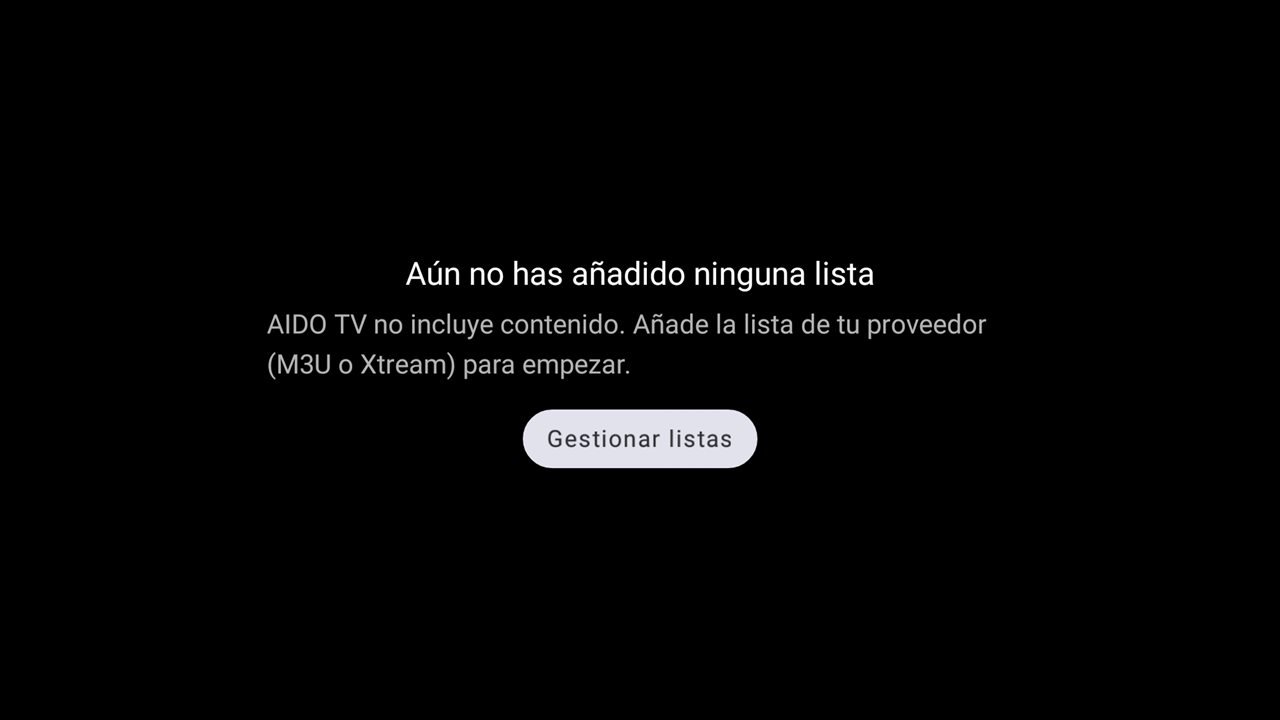
The home screen before any list is added. (The app follows your device language; this screenshot is in Spanish.) If you already have a list and want to add another: during playback press LEFT a few times until the main menu opens, choose Settings, then Manage lists.
Choose "+ Add list"
The Settings screen shows your lists and, at the top, the options for adding a new one.
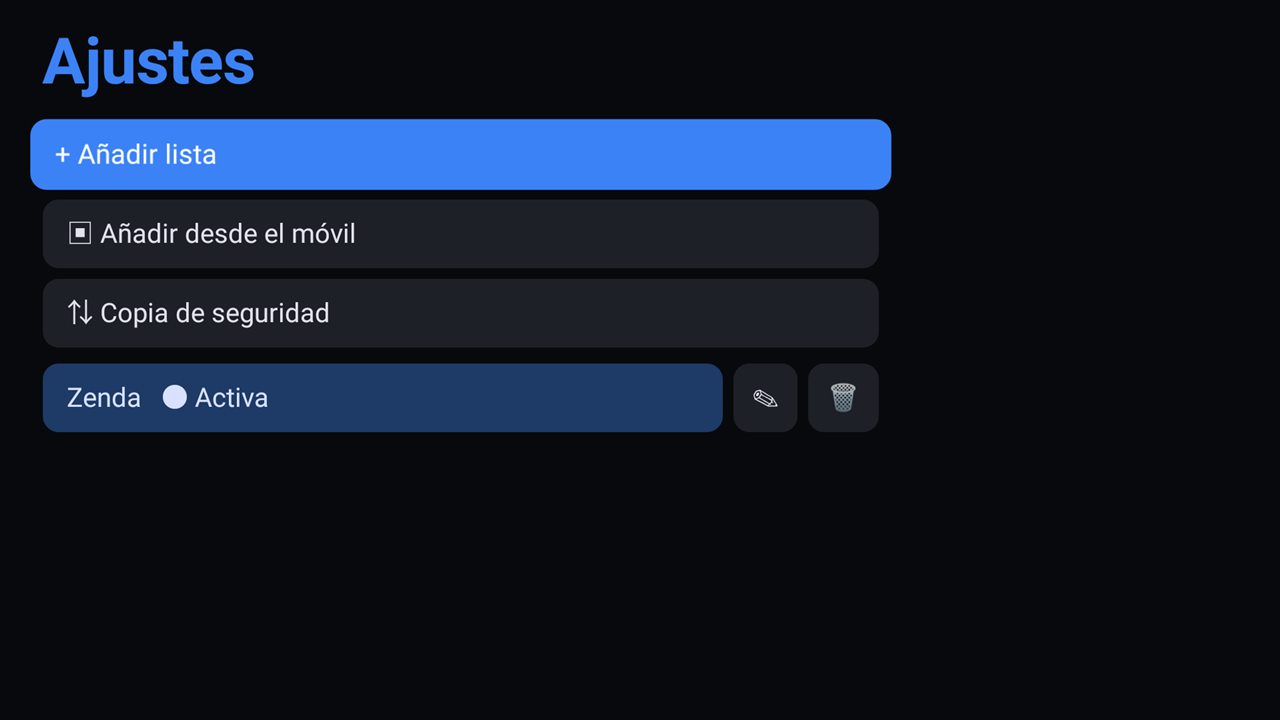
Settings → Manage lists. The active list is marked "Active". Choose the type: M3U or Xtream
Under Type, pick the one that matches what your provider gave you.
Fill in the details
- M3U: Name (anything you like), M3U URL and, if you want, EPG URL (optional).
- Xtream: Name, Server URL, Username and Password. You can press "Show password" to check you typed it correctly.
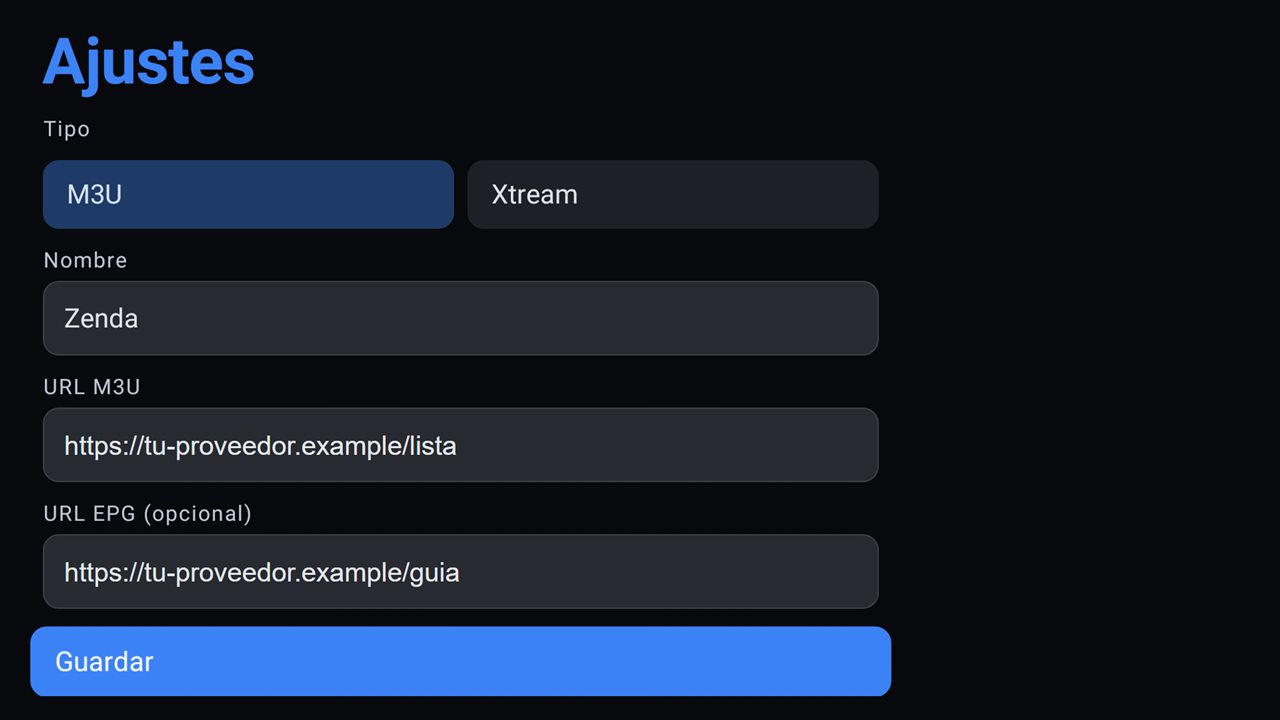
The form for an M3U list. The addresses in the example are made up. Press "Save" and wait
AIDO TV downloads the list and analyses the channels (you will see "Downloading playlist…" and "Analysing channels"). Very large lists can take a while. To cancel, press BACK.
Start watching
If it is your only list it is already active and opens in playback. If you have several, press Select on the one you want to use.
Tip: typing a long URL with a remote is slow and error-prone. If yours is long, use option 2.
Option 2: send it from your phone with a code
This saves you typing long addresses: you type (or paste) the list on your phone and the TV receives it.
On the TV
Go to Settings → Manage lists → Add from your phone.
Connect your phone to the same Wi-Fi
Your phone and the TV must be on the same Wi-Fi network.
Scan the code or open the address
Scan the QR code with your phone's camera, or open the address shown on screen in your phone's browser and enter the code.
Send the list
Fill in the fields on your phone and send them. The TV will show "List received".
Option 3: from the app on your Android phone
If you use AIDO TV on an Android phone: on the home screen tap Go to Settings (or open Settings), go to Manage lists and tap + Add list. The fields are the same as on the TV, and you can paste the address directly.
Several lists and backup
You can save several lists and switch between them. The Basic version has one active list at a time; with Premium there is no limit (if you try to activate another without Premium, the app will say "Premium required").
To take your lists to another device, go to Settings → Manage lists → Backup: open on your phone the address shown on the TV to copy your lists as text or restore a saved copy.
If the list will not load
These are the most common messages and their likeliest cause:
| What you see | What to check |
|---|---|
| "The list loaded, but it contains no channels" | The address is cut short or wrong, you picked the wrong type (M3U instead of Xtream, or the other way round), or the list is empty on the server. |
| "The list could not be loaded" | Check the address, username and password. Make sure there are no spaces at the start or end, and that the URL starts the same way as the one your provider gave you (http:// or https://). |
| The server took too long | Your connection is slow or the provider's server is overloaded. Try again later. |
| No internet connection | Check the TV's Wi-Fi or network cable. |
| Xtream: account shows "Expired" | Your subscription with the provider has run out. AIDO TV shows the expiry date of an Xtream account; renew with your provider. |
Two more checks: with Xtream, enter the server URL exactly as your provider gave it (usually with the port), and remember that the username and password are case-sensitive. And if you can see the channels but the programme guide is missing, read the EPG section in what M3U, Xtream and EPG are.